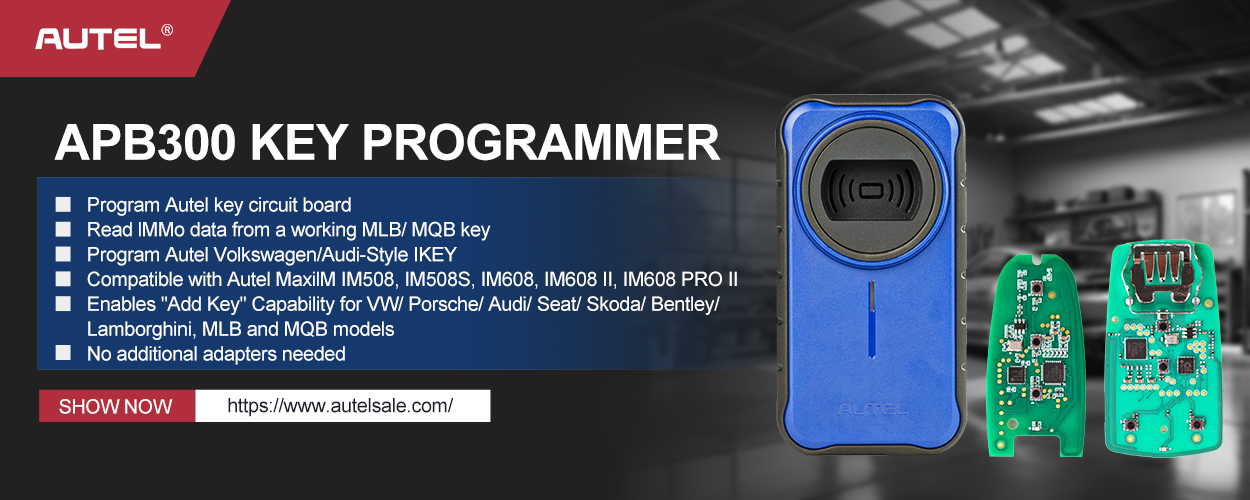


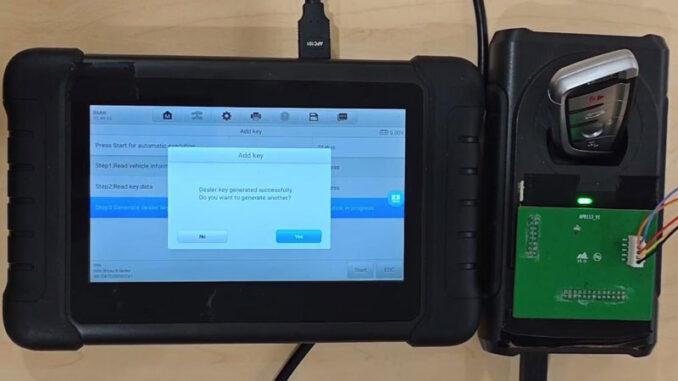
Programming BMW BDC03 keys for G-Series models can be complex, but the combination of the Autel MaxiIM IM508S or IM608 II with the APB113 Adapter offers a fast, secure, and professional workflow. This guide covers BMW 5 Series (G30/ G31/ G60) models produced after July 2020.
Pre-requisites for Success
Before starting, ensure you have the following ready:
Vehicle Condition: The car must be in good working order.
Working Key: An original OEM working key is required.
Hardware: Autel IM508S or IM608 Pro2 tablet.
Programmer: XP400 Pro, XP401 Pro, or XP400.
Adapter: Autel APB113 Adapter (highly recommended for stable BDC03 data reading).
Key: A new Autel BMW Programmable Key.
Step-by-Step Programming Guide
1. Vehicle Identification
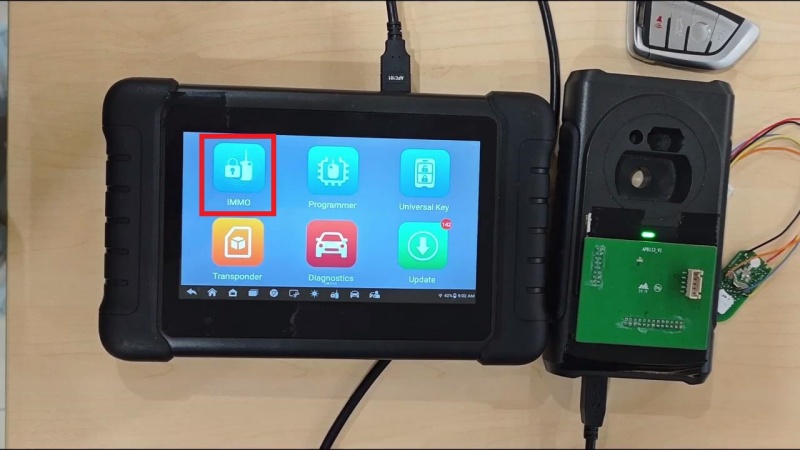
Connect your Autel device to the vehicle’s DLC. Navigate to:
IMMO > Accept > BMW > Manual Selection.
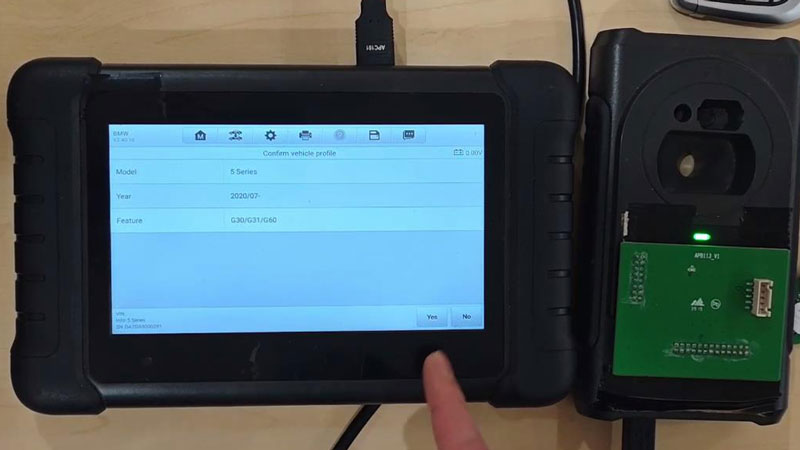
Select 5 Series > 2020/07-G30/G31/G60 and confirm the vehicle info.
2. Select Key Function
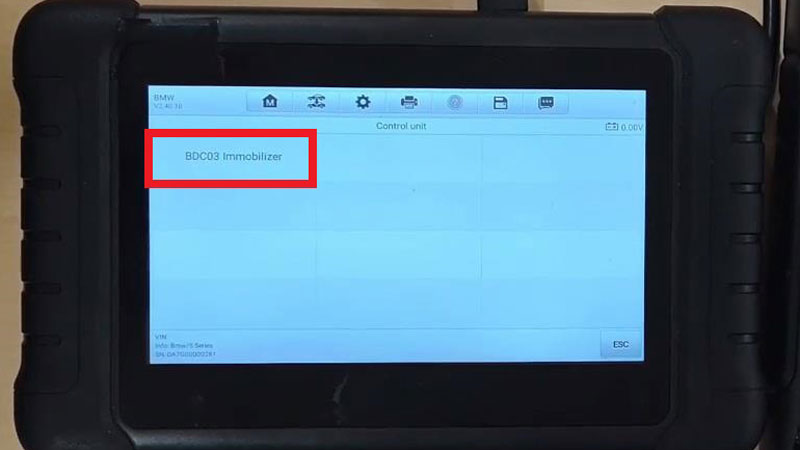
Navigate through the control unit menu:
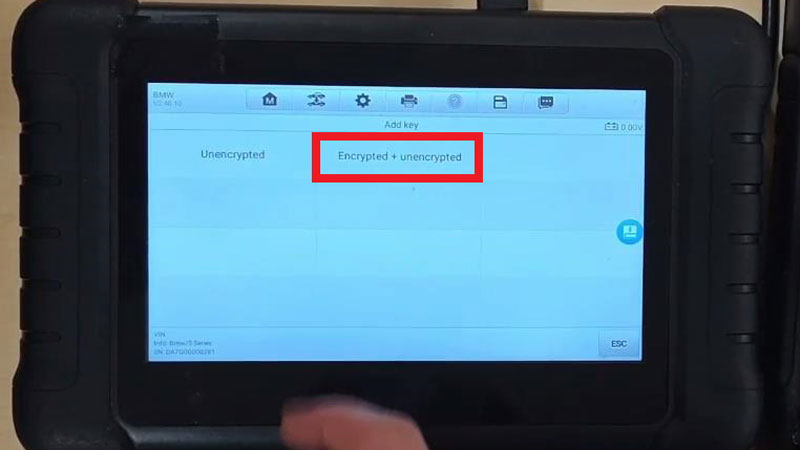
Control Unit > BDC03 Immobilizer > Key Operation > Add Key > Encrypted + Unencrypted.
3. Data Processing & Original Key Verification
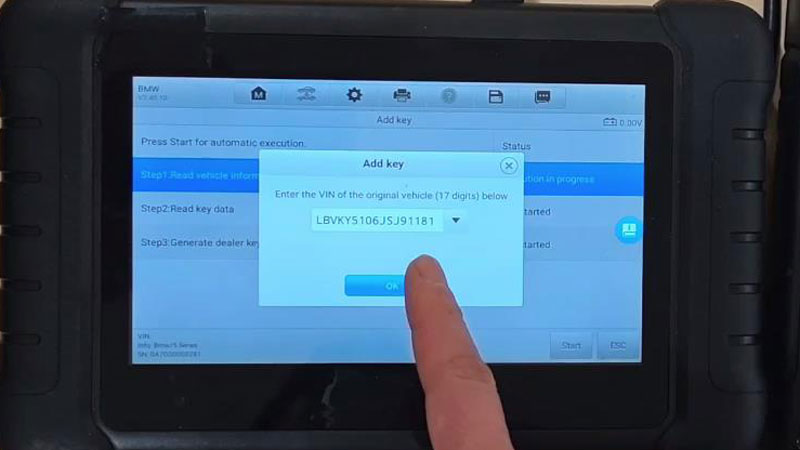
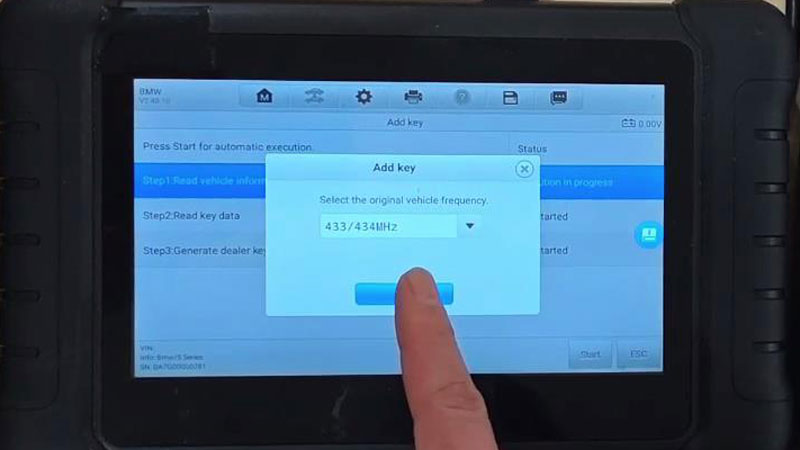
(1) Enter the vehicle’s VIN and select the correct frequency.
(2) Connect your programmer (e.g., XP400 Pro) to the tablet.
(3) Place the working OEM key into the programmer’s key slot to read the data.
4. Wiring & APB113 Connection
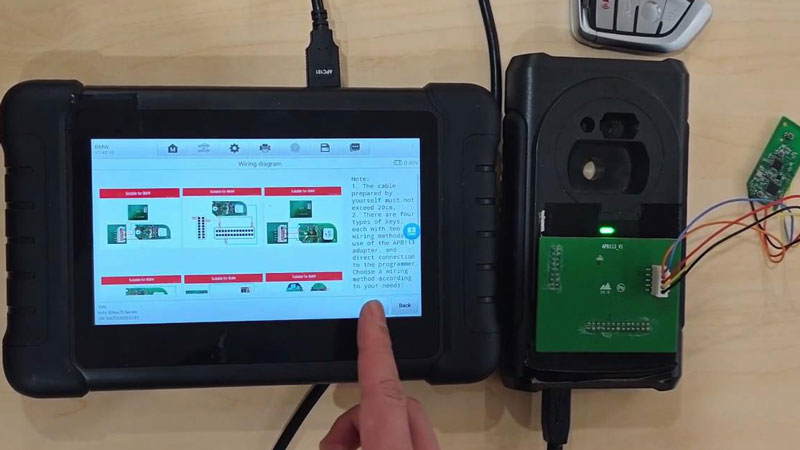
The APB113 adapter simplifies the connection to the BDC03 module.
Note: If using custom cables, ensure they do not exceed 20cm to maintain signal integrity.
Choose the wiring method provided on the screen that matches your specific key type.
5. Generating the Dealer Key
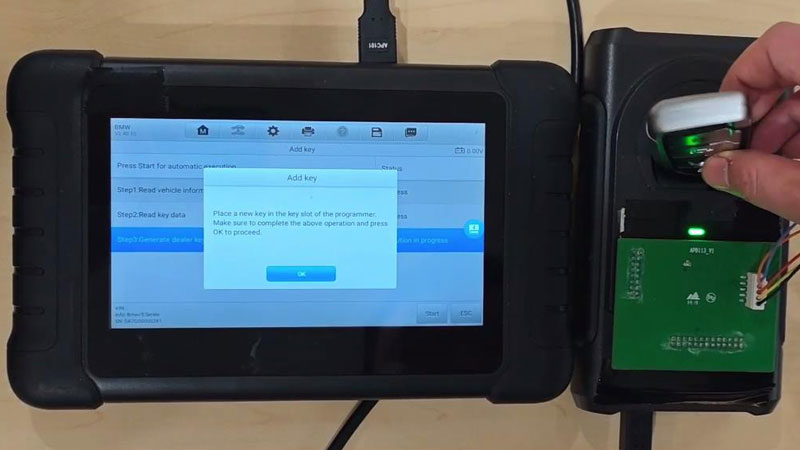
(1) Place the new Autel BMW key into the programmer’s key slot.
(2) Press OK to begin the generation process.
(3) Wait: The system will take approximately 1–3 minutes to program the key.
6. Completion
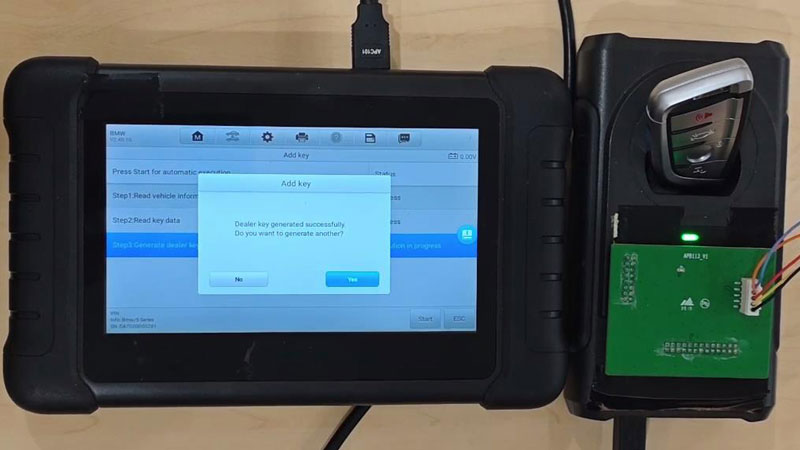
Once the screen displays “Dealer key generated successfully”, you are finished. You can choose to program another key or exit the session.
Pro Tip: To prevent signal interference, do not keep the new and old keys in close proximity when testing them in the vehicle.